
Permissions
Vox requires specific system permissions to function properly. This guide explains each permission and how to grant them.
Required Permissions
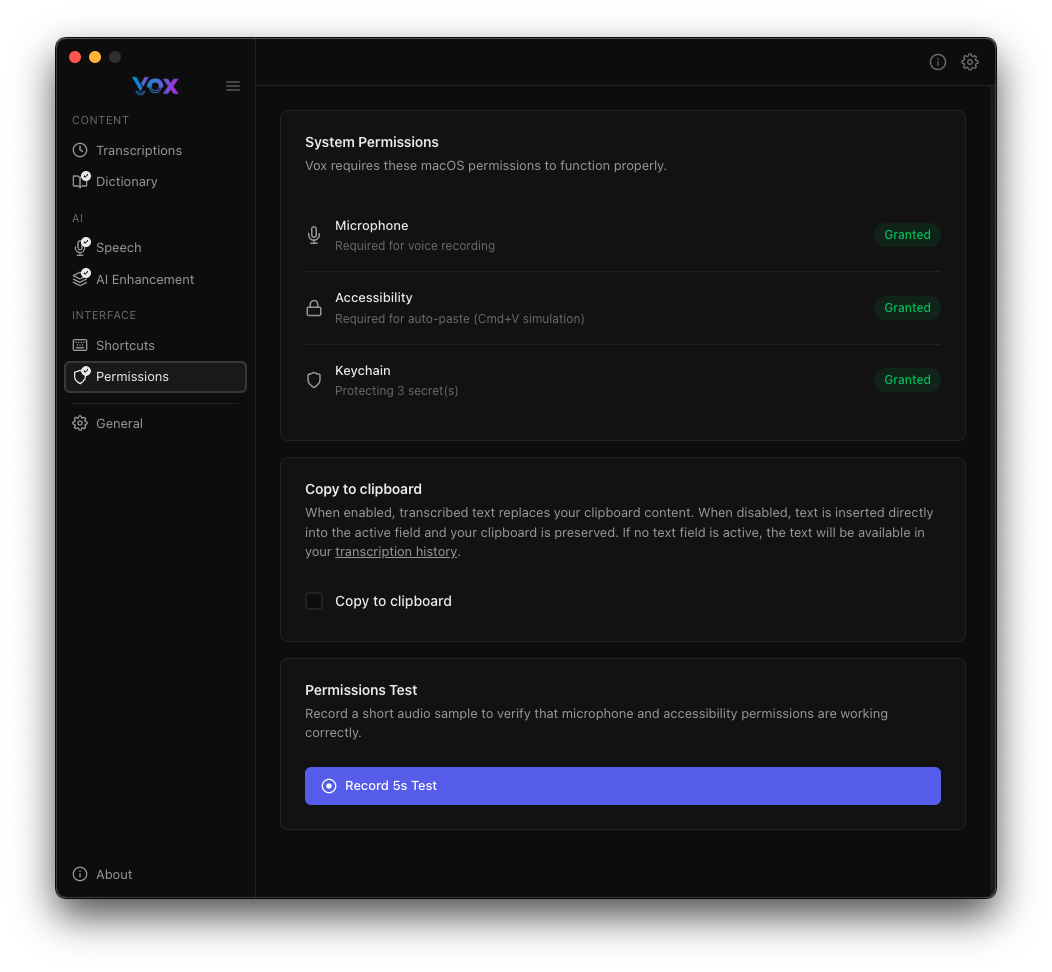
Navigate to Settings → Permissions to view and manage all required permissions.
Microphone
Status: Required for recording
The microphone permission allows Vox to capture audio for transcription.
How to grant (macOS):
- Open System Settings → Privacy & Security → Microphone
- Toggle on "Vox"
How to grant (Windows):
- Open Settings → Privacy → Microphone
- Ensure "Allow apps to access your microphone" is on
- Toggle on "Vox" in the app list
What it's used for:
- Recording your voice for transcription
- Audio testing and verification
- Storing audio clips for review
Important
Without microphone access, Vox cannot record or transcribe your speech.
Accessibility
Status: Required for GNVFMT simulation
The accessibility permission enables Vox to paste transcriptions directly into your active application.
How to grant (macOS):
- Open System Settings → Privacy & Security → Accessibility
- Click the lock icon and authenticate
- Toggle on "Vox"
Windows
On Windows, Vox uses standard system APIs for text insertion and does not require a separate accessibility permission.
What it's used for:
- Pasting transcribed text into any application
- Simulating keyboard input
- Seamless text insertion workflow
Manual Alternative
If you prefer not to grant Accessibility permission, you can manually paste transcriptions using ⌘ + V after recording. The text will be copied to your clipboard automatically.
Keychain
Status: Accessing to secrets
The keychain permission allows Vox to securely store your AI enhancement API keys.
How to grant (macOS):
- When prompted, click "Allow" or "Always Allow"
- Enter your macOS password when requested
How to grant (Windows): Vox uses Windows Credential Manager automatically. No manual permission is needed.
What it's used for:
- Securely storing AWS Bedrock credentials
- Protecting API keys for AI enhancement providers
- Encrypting sensitive configuration data
Optional Permission
Keychain access is only required if you enable AI Enhancement with providers like AWS Bedrock or DeepSeek. If you're using only local transcription, this permission is not needed.
Copy to Clipboard
When enabled, transcribed text replaces your clipboard content. When disabled, text is inserted directly into the active field and your clipboard is preserved. If text field is not found, the text will still be available in your transcription history.
Toggle this setting if you:
- Want to control where transcriptions go manually
- Need to preserve your clipboard content
- Prefer to paste transcriptions yourself
Testing Permissions
Permissions Test
Vox includes a built-in test to verify that microphone and accessibility permissions are working correctly.
To run the test:
- Navigate to Settings → Permissions
- Click Record for Test
- Speak a short phrase
- Verify that:
- Audio is captured (microphone working)
- Text is pasted into a test field (accessibility working)
If the test fails:
- Check that all permissions are granted in System Settings (macOS) or Settings (Windows)
- Restart Vox and try again
- Restart your computer if permissions were recently granted
Troubleshooting
macOS Troubleshooting
Permission Appears Granted But Not Working
macOS sometimes requires an application restart after granting permissions:
- Quit Vox completely (right-click tray icon → Quit)
- Relaunch Vox from Applications
- Test the permission again
System Preferences Shows Different Status
If System Preferences shows a permission as granted but Vox shows it as denied:
- Toggle the permission off and back on in System Preferences
- Restart Vox
- If the issue persists, restart your Mac
Microphone Access Denied Error
If you see repeated microphone access denied errors:
- Check System Preferences → Security & Privacy → Microphone
- Remove Vox from the list (click the
-button) - Restart Vox - you'll be prompted to grant access again
- Click "OK" or "Allow" when prompted
Accessibility Permission Not Taking Effect
Accessibility permissions can be particularly finicky on macOS:
- Open System Preferences → Security & Privacy → Privacy → Accessibility
- Remove Vox from the list
- Quit Vox completely
- Restart your Mac
- Launch Vox and grant accessibility permission when prompted
Monterey and Later
macOS Monterey (12.0) and later versions have stricter permission controls. You may need to grant permissions multiple times or restart your Mac after granting them.
Windows Troubleshooting
Microphone Not Detected
- Open Settings → Privacy → Microphone
- Ensure "Allow apps to access your microphone" is enabled
- Check that Vox appears in the app list and is toggled on
- Restart Vox if permissions were recently changed
Text Not Pasting
- Try running Vox as administrator
- Ensure the target application accepts keyboard input
- Check that no other application is blocking input simulation
Privacy and Security
What Data is Accessed
Vox respects your privacy:
- Microphone: Only captures audio when you actively press the recording shortcut
- Accessibility: Only simulates keyboard input to paste transcriptions
- Keychain: Only stores encrypted API keys - never reads other keychain items
Data Storage
- Audio recordings: Stored locally on your device (see Audio Retention)
- Transcriptions: Saved locally in Vox's application folder
- API keys: Encrypted in macOS Keychain or Windows Credential Manager
- No cloud sync: All data stays on your device unless you enable AI Enhancement
Revoking Permissions
You can revoke permissions at any time:
macOS: Open System Settings → Privacy & Security, select the relevant category, and toggle off "Vox".
Windows: Open Settings → Privacy, select the relevant category, and toggle off "Vox".
Note: Revoking microphone or accessibility permissions will prevent Vox from functioning normally.
Next Steps
Once all permissions are granted:
- Download a speech model to start transcribing
- Configure keyboard shortcuts for easy recording
- Set up AI enhancement for improved transcription quality