
Transcriptions
View, search, and manage your transcription history in Vox.
Accessing Transcriptions
Click the tray icon and select View Transcriptions:

Transcription History
Overview
Vox automatically saves all your transcriptions, allowing you to:
- Review past recordings
- Copy text to clipboard
- Play back original audio
- Add missed words to your dictionary
- Delete unwanted transcriptions
Transcription List
The transcriptions view displays:
- Timestamp: When the recording was made
- Text: The transcribed content
- Duration: Length of the original recording
- Actions: Quick action buttons
Transcriptions are sorted by date, with the most recent at the top.
Working with Transcriptions
Copying Text
To copy a transcription to your clipboard:
- Find the transcription you want
- Click the copy icon or text
- Text is copied to clipboard
- Paste anywhere with
⌘ + V
Playing Audio
To replay the original audio:
- Click the play button next to the transcription
- Audio plays through your default output device
- Useful for verifying accuracy or reviewing context
Audio Retention
Audio is only available if retained. Configure retention in Settings → Speech → Audio retention.
Adding to Dictionary
If a transcription contains a word that was incorrectly transcribed:
- Click Add to Dictionary
- Enter the correct spelling
- Vox will recognize this word in future transcriptions
See Dictionary for more details.
Deleting Transcriptions
To remove a transcription:
- Click the delete icon
- Confirm deletion
- Both text and audio are removed permanently
Permanent Deletion
Deleted transcriptions cannot be recovered. Make sure you've copied any important text before deleting.
Searching Transcriptions
Search Functionality
Use the search box to find specific transcriptions:
- Search by text content
- Search by date
- Results update in real-time as you type
Search Tips
- Exact phrases: Use quotes for exact matches (e.g.,
"important meeting") - Multiple words: Search returns transcriptions containing any of the words
- Date ranges: Filter by date using the date picker
Transcription Details
Viewing Details
Click on any transcription to view:
- Full text: Complete transcription content
- Metadata: Date, time, duration
- Audio: Play original recording
- Model used: Which speech model was active
- Enhancement: Whether AI Enhancement was applied
Enhanced vs. Non-Enhanced
Transcriptions show whether AI Enhancement was used:
- Enhanced: Processed by LLM, improved grammar and formatting
- Non-enhanced: Raw output from Whisper model
Managing Storage
Storage Location
Transcriptions are stored locally in:
~/Library/Application Support/Vox/transcriptions/Audio Storage
Original audio recordings are stored separately:
~/Library/Application Support/Vox/audio/Audio retention is configurable in Settings → Speech → Audio retention.
Disk Space
To free up disk space:
Delete old transcriptions:
- Select transcriptions you no longer need
- Click delete
- Both text and audio are removed
Reduce audio retention:
- Navigate to Settings → Speech
- Lower Audio retention number
- Older audio files are automatically cleaned up
Storage Management
If disk space is limited, reduce audio retention to 5 or fewer recordings. Text transcriptions take minimal space.
Exporting Transcriptions
Export Options
While Vox doesn't have a built-in export feature, you can:
Export to text file:
- Copy transcriptions one by one
- Paste into a text editor
- Save as
.txtor.md
Export to database:
- Transcriptions are stored in a SQLite database
- Advanced users can query directly:
~/Library/Application Support/Vox/transcriptions.db
Backup:
- Manually back up the transcriptions folder
- Include in Time Machine or cloud backup
Privacy and Data
Local Storage
All transcriptions are stored locally:
- Never synced to cloud (unless you backup manually)
- Never sent to Vox servers
- Only sent to AI providers if AI Enhancement is enabled
Sensitive Information
If you transcribe sensitive information:
- Delete transcriptions after use
- Disable audio retention
- Don't enable AI Enhancement for sensitive content
- Encrypt your backup if you export data
Data Privacy
If you enable AI Enhancement, transcription text (not audio) is sent to external AI providers. Review their privacy policies before enabling.
Transcription Preferences
Configure how transcriptions are formatted:
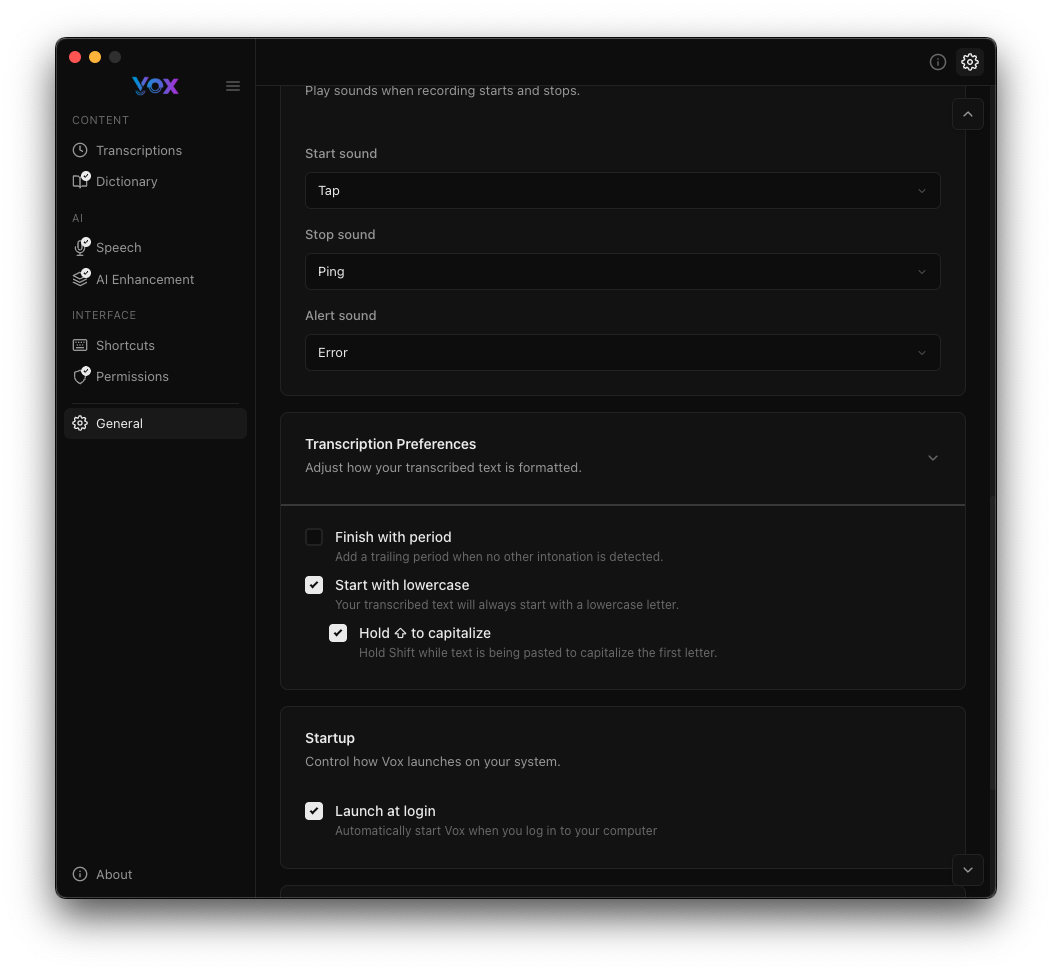
Navigate to Settings → General → Transcription Preferences:
Finish with Period
Automatically adds a period at the end of transcriptions.
Enable if you:
- Transcribe complete sentences
- Want consistent punctuation
- Use transcriptions for formal writing
Disable if you:
- Transcribe fragments or keywords
- Add your own punctuation manually
- Use transcriptions for code or technical content
Start with Lowercase
Begins transcriptions with a lowercase letter.
Enable if you:
- Continue existing sentences
- Add inline comments in code
- Want lowercase by default
Disable if you:
- Start new sentences
- Want automatic capitalization
- Transcribe formal content
Hold Shift to Capitalize
Press Shift while recording to capitalize the first letter.
How it works:
- Hold Shift when pressing your recording shortcut
- Recording starts as normal
- First letter is automatically capitalized
- Overrides "Start with lowercase" setting
Useful for:
- Starting new sentences
- Proper nouns
- Beginning of paragraphs
- Overriding lowercase setting temporarily
Best Practices
Organizing Transcriptions
While Vox doesn't support folders or tags, you can:
- Use consistent naming in your speech (e.g., "Project X: ...")
- Search for specific keywords to filter
- Export and organize externally
- Delete transcriptions you no longer need regularly
Reviewing Accuracy
Periodically review transcriptions to:
- Identify commonly misrecognized words
- Add corrections to your dictionary
- Test different speech models
- Adjust AI Enhancement prompts
Backup Strategy
Recommended backup approach:
- Enable Time Machine for automatic backups
- Periodically export important transcriptions
- Keep audio retention low (5-10) to save space
- Back up the entire Vox application folder monthly
Troubleshooting
Transcription Not Appearing
Solutions:
- Refresh the transcriptions view
- Check that recording completed successfully
- Verify transcription wasn't immediately deleted
- Restart Vox
Audio Not Available
Solutions:
- Check audio retention setting
- Older recordings may have been cleaned up
- Verify disk space wasn't full during recording
- Increase retention to keep more audio
Can't Delete Transcriptions
Solutions:
- Check file permissions in
~/Library/Application Support/Vox/ - Quit and restart Vox
- Manually delete from Finder if necessary
- Verify you have write permissions
Search Not Working
Solutions:
- Check spelling of search terms
- Try broader search terms
- Clear search and try again
- Restart Vox if issue persists
Transcriptions Taking Too Much Space
Solutions:
- Delete old transcriptions you don't need
- Reduce audio retention to 5 or fewer
- Set audio retention to 0 to disable audio storage entirely
- Export and archive transcriptions externally, then delete from Vox
Advanced Features
Database Access
Advanced users can directly access the transcriptions database:
Location:
~/Library/Application Support/Vox/transcriptions.dbTools:
- SQLite browser
- SQL queries for custom export
- Integration with other tools
Advanced Users Only
Direct database access is for advanced users. Incorrect modifications can corrupt your transcription history.
Bulk Operations
While Vox doesn't support bulk operations natively, you can:
- Select multiple transcriptions with Shift+Click (if supported)
- Use database queries for bulk export
- Write scripts to process transcriptions
Integration with Other Apps
Export transcriptions to integrate with:
- Note-taking apps: Copy to Obsidian, Notion, Evernote
- Task managers: Add transcriptions to Todoist, Things
- Documentation: Include in wikis or knowledge bases
- Development: Add as code comments or documentation
Next Steps
- Add custom words to your dictionary to improve accuracy
- Configure transcription preferences for better formatting
- Enable AI Enhancement for polished output
- Adjust audio retention to manage storage