
Dictionary
Add custom words and phrases to improve transcription accuracy for technical terms, proper nouns, jargon, and domain-specific language.
Overview
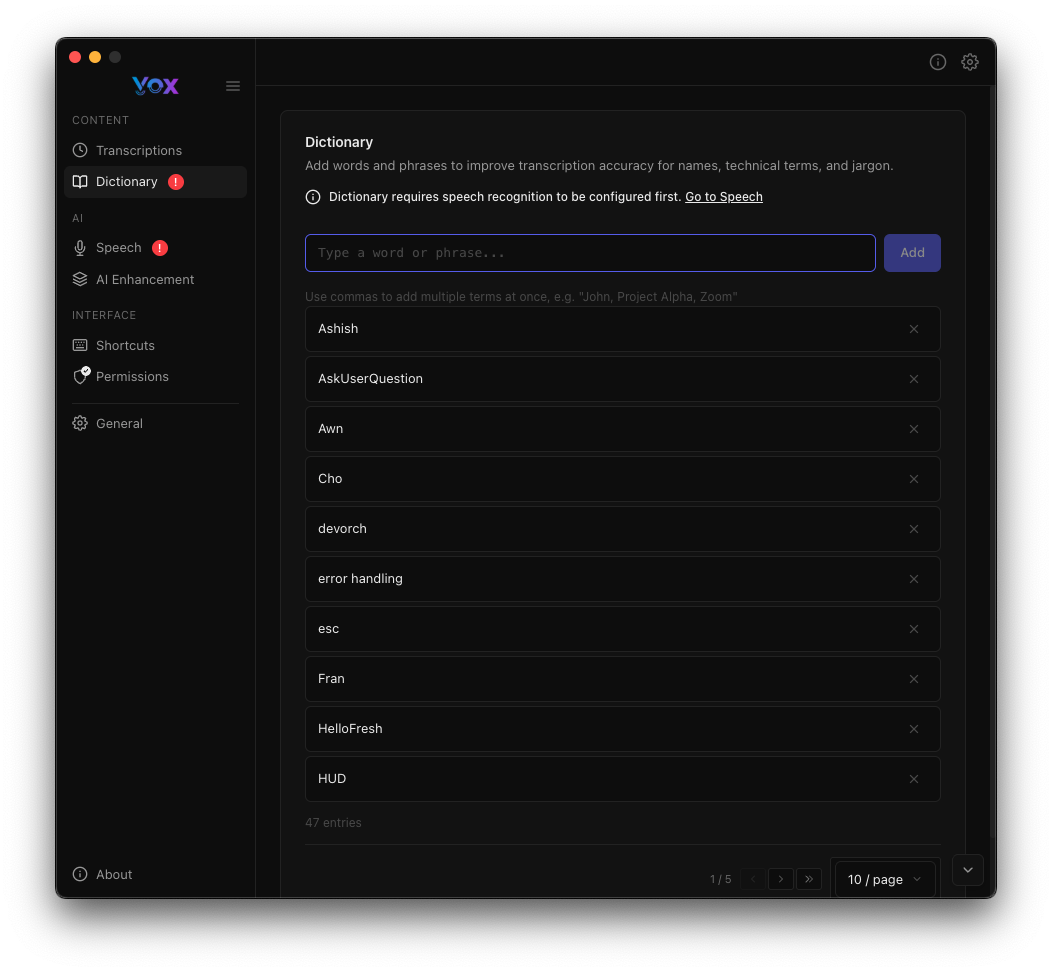
Access the dictionary from Settings → Dictionary.
What is the Dictionary?
The dictionary allows you to teach Vox custom words that might be incorrectly transcribed by default. When Vox recognizes speech that sounds like a dictionary entry, it uses your specified spelling instead.
First-Time Setup
Dictionary requires speech recognition to be configured first. Go to Speech to download a model.
Why Use a Dictionary?
Whisper models are trained on general language and may struggle with:
- Technical terms: API names, frameworks, libraries (e.g., "TypeScript", "Kubernetes", "FastAPI")
- Proper nouns: Names of people, companies, products (e.g., "Doug", "Anthropic", "CloudFlare")
- Industry jargon: Domain-specific terminology (e.g., "devops", "frontend", "microservices")
- Abbreviations: Acronyms and shorthand (e.g., "AWS", "CI/CD", "API")
- Brand names: Company and product names (e.g., "Spotify", "Netflix", "GitHub")
- Code terms: Programming concepts (e.g., "async/await", "useState", "npm")
Adding these to your dictionary ensures consistent, accurate transcription.
Adding Words
Manual Entry
To add a word manually:
- Navigate to Settings → Dictionary
- Type the word or phrase in the input box
- Click Add or press Enter
- The word appears in your dictionary list
From Transcriptions
When reviewing transcriptions, you can add incorrectly transcribed words:
- Navigate to Transcriptions
- Find a transcription with an error
- Click Add to Dictionary
- Enter the correct spelling
- The word is added to your dictionary
See Transcriptions for more details.
Dictionary Examples
The screenshot shows example dictionary entries:
- Airbnb: Travel company name
- AskUserQuestion: Code/function name (camelCase)
- Aws: Amazon Web Services (capitalization)
- Cho: Proper noun or brand name
- devorch: Custom tool or project name
- error handling: Technical term (lowercase)
- etc: Common abbreviation
- fran: Person's name
- Spotify: Music streaming service (proper capitalization)
- HUD: Acronym for Heads-Up Display
Best Practices
What to Add
Good candidates:
- Words Vox consistently gets wrong
- Technical terms you use frequently
- Proper nouns (names, places, brands)
- Industry-specific jargon
- Abbreviations and acronyms
- Code identifiers (camelCase, snake_case)
Not necessary:
- Common English words (already in Whisper's vocabulary)
- Words that are correctly transcribed
- Very rare words you use once
Capitalization
Capitalization matters in dictionary entries:
AWS→ Transcribed as "AWS" (all caps)Aws→ Transcribed as "Aws" (first letter capitalized)aws→ Transcribed as "aws" (lowercase)
Add entries with the exact capitalization you want:
Spotify(not "spotify" or "SPOTIFY")TypeScript(not "typescript" or "Typescript")iOS(not "ios" or "IOS")
Multi-Word Phrases
You can add multi-word phrases:
error handling→ Ensures this phrase is transcribed correctlyasync await→ JavaScript/Python conceptmachine learning→ Technical term
Vox will recognize the phrase and use your spelling when you speak it.
Punctuation and Special Characters
Dictionary entries can include:
- Hyphens:
ci-cd,front-end - Slashes:
and/or,async/await - Numbers:
web3,i18n - Underscores:
snake_case,user_id
Do not include:
- Periods, commas, or other sentence punctuation
- Quotes or brackets
Searching the Dictionary
Use the search box to find entries:
- Type to filter the list
- Finds partial matches
- Results update in real-time
Example searches:
- Search
error→ Finds "error handling" - Search
Spot→ Finds "Spotify" - Search
Hud→ Finds "HUD"
Editing Dictionary Entries
Removing Entries
To remove a word from your dictionary:
- Find the entry in the list
- Click the × (remove) button next to it
- The entry is deleted immediately
Clean Up Regularly
Periodically review your dictionary and remove:
- Words that are no longer relevant
- Duplicate entries
- Test entries
Updating Entries
To change a dictionary entry:
- Remove the old entry
- Add the corrected entry
- No need to restart Vox
Troubleshooting
Dictionary Entry Not Working
Solutions:
- Check pronunciation: Speak the word clearly and consistently
- Verify spelling: Ensure the dictionary entry is spelled correctly
- Try variations: Add multiple capitalizations if unsure
- Add both
awsandAWS - Add
typescriptandTypeScript
- Add both
- Test with different models: Try larger speech models
- Use AI Enhancement: AI Enhancement can help correct words the dictionary misses
Word Still Incorrectly Transcribed
If a dictionary entry isn't working:
- Speak clearly: Pronounce the word clearly and consistently
- Try variations: Add different capitalizations (e.g.,
awsandAWS) - Use a larger model: Try Accurate or Best models
- Enable AI: Use AI Enhancement as an alternative
Too Many Entries
If your dictionary becomes unwieldy:
- Review regularly: Remove unused entries
- Focus on frequently used terms: Don't add everything
- Group by category: Keep a separate note of entries by domain
- Export for backup: Copy entries to a text file for reference
Entries Disappeared
If dictionary entries were lost:
- Check for updates: Updates shouldn't affect the dictionary
- Backup regularly: Export your dictionary periodically
Dictionary Backup
To back up your dictionary:
- Copy all entries to a text file
- Save the file in a safe location
To restore entries:
- Add the words again through the interface
- You can copy and paste multiple words at once
Future Feature
Automatic export/import functionality may be added in future Vox versions.
Example Dictionary Setups
For Software Developers
TypeScript
JavaScript
Python
FastAPI
Docker
Kubernetes
AWS
PostgreSQL
CI/CD
API
frontend
backend
devops
microservices
async/await
useState
useEffect
For Content Creators
YouTube
Instagram
TikTok
SEO
CMS
WordPress
Shopify
analytics
engagement
monetization
For Medical Professionals
[Add medical terms specific to your specialty]
diagnosis
treatment
medication
patient
symptoms
For Multilingual Users
Spotify
Netflix
GitHub
Doug
Cho
devorch
Anthropic
Next Steps
- Configure speech models for better base accuracy
- Enable AI Enhancement to complement dictionary corrections
- Review transcriptions to find words that need dictionary entries
- Adjust transcription preferences for better formatting