
Speech Models
Vox uses OpenAI's Whisper models for local speech recognition. This guide explains the available models and how to choose the right one for your needs.
Understanding Speech Models
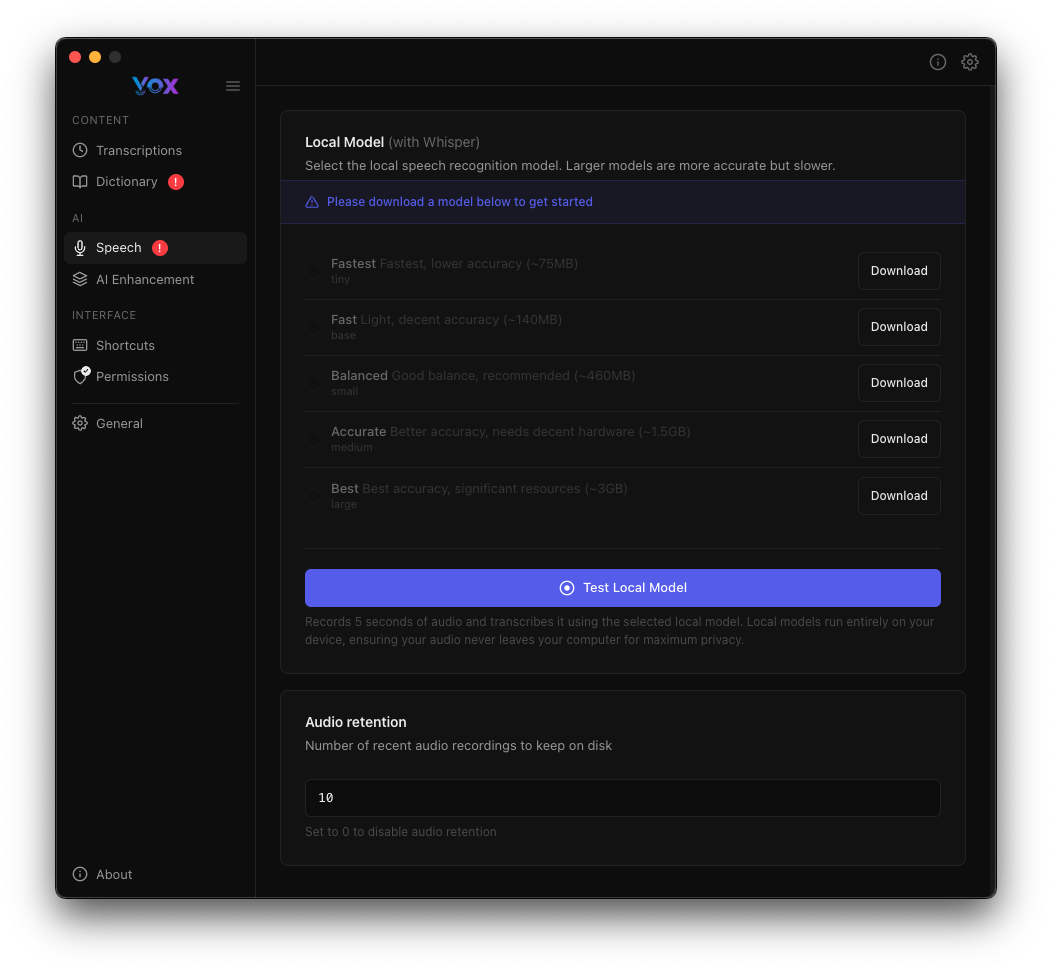
Access speech models from Settings → Speech.
What Are Whisper Models?
Whisper is OpenAI's open-source automatic speech recognition (ASR) system. Vox runs these models locally on your device, ensuring:
- Privacy: Audio never leaves your device
- Offline capability: Works without internet connection
- Speed: No network latency
- Cost: No per-minute charges
Privacy First
All speech recognition happens on your device. Your voice data is never sent to external servers (unless you enable AI Enhancement).
Available Models
Vox offers five Whisper model variants, each balancing speed and accuracy differently:
Fastest
Size: ~75MB Speed: Lowest latency (<50ms) Accuracy: Good for clear speech Best for: Quick commands, short phrases, testing
The smallest and fastest model. Ideal for users who prioritize speed over accuracy or have limited disk space.
Fast
Size: ~150MB Speed: Very low latency (~50ms) Accuracy: Better than Fastest Best for: Daily use with clear speech
A good middle ground between speed and quality. Suitable for most casual transcription needs.
Balanced
Size: ~480MB Speed: Recommended (~480MB) Accuracy: Good general-purpose accuracy Best for: Most users, general transcription
Recommended for most users. Provides excellent accuracy for everyday use without requiring excessive resources.
Accurate
Size: ~1.5GB Speed: Better accuracy, more decent latency (~1.5GB) Accuracy: High accuracy for complex speech Best for: Professional transcription, technical content, accents
Higher accuracy for challenging audio conditions, technical terminology, and various accents.
Best
Size: ~3GB Speed: Highest quality, significant CPU (~3GB) Accuracy: Maximum accuracy Best for: Critical transcription, multi-language, noisy environments
The largest and most accurate model. Use when transcription quality is paramount and system resources allow.
Downloading Models
First-Time Setup
When you first install Vox, no models are downloaded. You must download at least one model to use Vox.
To download a model:
- Navigate to Settings → Speech
- Click Download next to your chosen model
- Wait for the download to complete
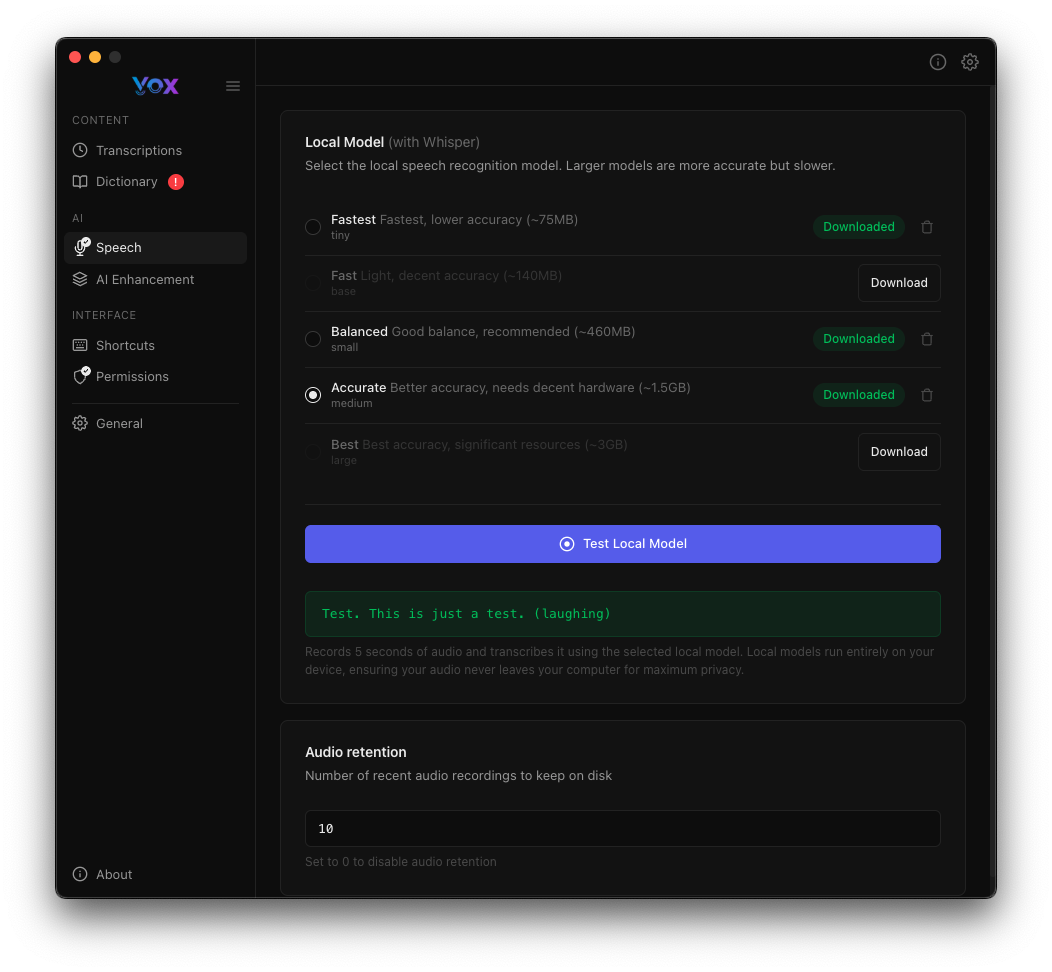
- The button changes to "Downloaded" when ready
First Model Recommendation
Start with Balanced for the best balance of quality and performance. You can always download additional models later.
Downloading Multiple Models
You can download multiple models and switch between them:
- Download different models for different use cases
- Test each model with the Test Local Model button
- Vox uses the currently selected model (marked with a checkmark)
- Switch between models anytime without re-downloading
Download Requirements
- Internet connection: Required for initial download
- Disk space: Ensure sufficient space for your chosen model
- Time: Downloads typically take 1-10 minutes depending on model size and connection speed
System Requirements
Vox has different system requirements depending on your operating system:
macOS
| Requirement | Minimum | Recommended |
|---|---|---|
| OS Version | macOS 15 (Sequoia) | macOS 15+ (Sequoia or later) |
| Processor | Apple Silicon (M1) or Intel | Apple Silicon (M2 or newer) |
| RAM | 4 GB | 8 GB or more |
| Storage | 500 MB - 4 GB | 4 GB free space |
| Permissions | Microphone + Accessibility | - |
Apple Silicon Performance
Vox runs significantly faster on Apple Silicon (M1/M2/M3) compared to Intel Macs due to optimized neural engine support.
Windows
| Requirement | Minimum | Recommended |
|---|---|---|
| OS Version | Windows 10 (64-bit) | Windows 11 |
| Processor | x64 processor | Modern multi-core processor |
| RAM | 4 GB | 8 GB or more |
| Storage | 500 MB - 4 GB | 4 GB free space |
| Permissions | Microphone access | - |
Windows Performance
Performance varies based on processor. Modern CPUs (Intel 10th gen+, AMD Ryzen 3000+) provide better transcription speed.
Coming Soon
Linux, iOS, and Android support is planned for future releases. See roadmap →
Testing Models
After downloading a model, verify it works correctly:
- Click Test Local Model
- Speak a test phrase when prompted
- Review the transcription result
- Look for the success message: "Yeah. This is just a test. I laughing"
The test verifies:
- Model is properly downloaded and installed
- Audio pipeline is working
- Transcription accuracy meets your needs
Test with Real Content
Test with phrases similar to your actual use case (technical terms, names, etc.) to gauge accuracy.
Choosing the Right Model
Decision Matrix
| Model | Size | Speed | Accuracy | Best For |
|---|---|---|---|---|
| Fastest | 75MB | ⚡⚡⚡⚡⚡ | ⭐⭐⭐ | Testing, simple commands |
| Fast | 150MB | ⚡⚡⚡⚡ | ⭐⭐⭐⭐ | Daily use, clear speech |
| Balanced | 480MB | ⚡⚡⚡ | ⭐⭐⭐⭐ | Recommended for most users |
| Accurate | 1.5GB | ⚡⚡ | ⭐⭐⭐⭐⭐ | Professional work, technical content |
| Best | 3GB | ⚡ | ⭐⭐⭐⭐⭐ | Critical transcription, complex audio |
Consider Your Use Case
Choose Fastest or Fast if you:
- Need instant transcription results
- Transcribe short, simple phrases
- Have limited disk space
- Speak clearly in quiet environments
Choose Balanced if you:
- Want a good all-around experience
- Transcribe both short and long content
- Need reliable accuracy without sacrificing too much speed
- Are unsure which model to pick (start here!)
Choose Accurate if you:
- Work with technical terminology
- Speak with an accent or in multiple languages
- Transcribe in environments with background noise
- Need high accuracy for professional work
Choose Best if you:
- Require maximum transcription accuracy
- Work with complex, multi-language content
- Transcribe critical documents or legal content
- Have a powerful computer with plenty of resources
Model Performance Requirements
All models work on any computer that runs Vox, but performance varies:
For Fastest, Fast, Balanced:
- Any Mac running macOS 15 or later / Any modern Windows PC
- 8GB RAM minimum
- Standard performance expectations
For Accurate:
- Mac from 2020 or later / Windows PC with 8GB+ RAM recommended
- 16GB RAM recommended
- May be slower on older hardware
For Best:
- Apple Silicon Mac or modern Windows PC with 16GB+ RAM
- 16GB+ RAM recommended
- Expect noticeable processing time on transcriptions
Apple Silicon Advantage
Macs with Apple Silicon (M1, M2, M3 chips) run Whisper models significantly faster than Intel Macs due to their Neural Engine.
Model Performance
Processing Time Examples
Approximate transcription times for a 10-second recording:
Performance on Windows PCs with equivalent specifications is comparable.
| Model | Intel Mac (2019) | M1/M2 Mac | M3 Mac |
|---|---|---|---|
| Fastest | 0.5s | 0.2s | 0.1s |
| Fast | 1s | 0.5s | 0.3s |
| Balanced | 2s | 1s | 0.5s |
| Accurate | 5s | 2.5s | 1.5s |
| Best | 10s | 4s | 2s |
Times are approximate and vary based on audio complexity
Accuracy Comparison
Example transcription quality with technical terms:
Original speech: "Initialize the TypeScript interface with async await handlers"
| Model | Transcription Quality |
|---|---|
| Fastest | "Initialize the typescript interface with a sync away handlers" |
| Fast | "Initialize the TypeScript interface with a sync await handlers" |
| Balanced | "Initialize the TypeScript interface with async await handlers" ✓ |
| Accurate | "Initialize the TypeScript interface with async await handlers" ✓ |
| Best | "Initialize the TypeScript interface with async await handlers" ✓ |
AI Enhancement
For even better accuracy, enable AI Enhancement to post-process transcriptions with large language models.
Audio Retention
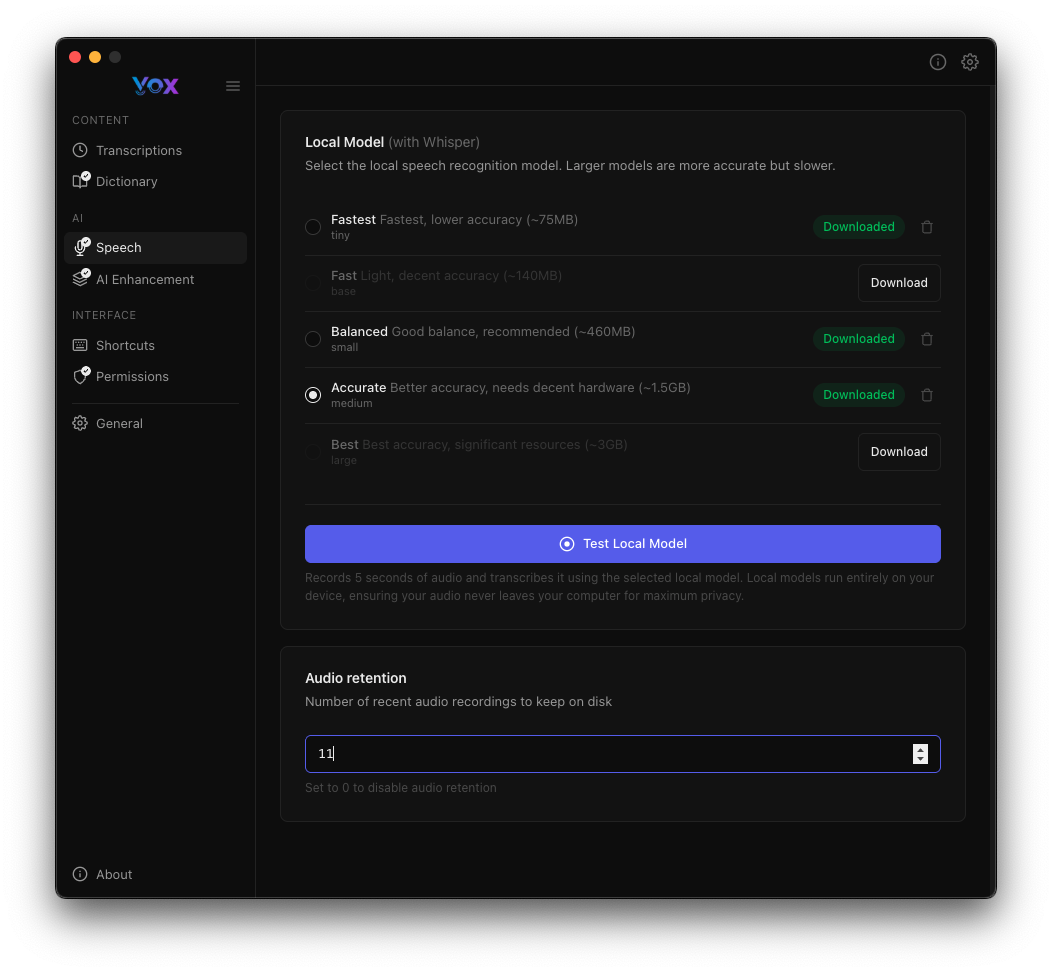
Configure how many recent audio recordings Vox keeps on disk:
Default: 10 recordings
Why keep audio:
- Review transcriptions for accuracy
- Test different models on the same audio
- Add missed words to your dictionary
- Debug transcription issues
Adjust retention:
- Increase if you frequently review past recordings
- Decrease to save disk space
- Set to
0to disable audio retention entirely
Privacy Note
Audio recordings are stored locally in Vox's application folder. They are never uploaded unless you explicitly enable AI Enhancement features.
Switching Models
You can change which model Vox uses at any time:
- Navigate to Settings → Speech
- Click on a different downloaded model
- The model with a checkmark is active
- Your next recording will use the new model
No restart required - the change takes effect immediately.
Managing Disk Space
Checking Model Storage
Models are stored in:
~/Library/Application Support/Vox/models/Removing Models
To free up disk space:
- Navigate to Settings → Speech
- Find models you no longer need
- Click the trash icon next to the model
- Confirm deletion
You can re-download models at any time without penalty.
Storage Tips
- Keep only the models you actively use
- Balanced model is a good single-model choice
- Download larger models only when needed
- Audio retention takes minimal space (configurable)
Troubleshooting
Model Download Failed
Solution:
- Check your internet connection
- Ensure sufficient disk space
- Try downloading a smaller model first
- Restart Vox and try again
Test Local Model Fails
Solution:
- Verify microphone permission is granted
- Check System Preferences → Sound → Input for microphone selection
- Try a different model
- Restart Vox
Poor Transcription Quality
Solutions:
- Upgrade to a larger model: Try Accurate or Best
- Check audio quality: Speak clearly, reduce background noise
- Add custom words: Use the Dictionary feature
- Enable AI Enhancement: Post-process with AI for better results
Model Takes Too Long to Process
Solutions:
- Downgrade to a smaller model: Try Fast or Balanced
- Shorten recordings: Break long dictation into smaller chunks
- Close other apps: Free up CPU resources
- Check system activity: Ensure your computer isn't under heavy load
Model Using Too Much CPU/Memory
Solutions:
- Switch to a smaller model (Fastest or Fast)
- Close background applications
- Reduce audio retention to free resources
- Consider upgrading your hardware if you need larger models
Advanced Topics
Model Architecture
Vox uses quantized versions of Whisper models optimized for:
- Optimized inference across platforms
- Reduced memory footprint
- Maintained accuracy vs. original models
- Apple Silicon Neural Engine acceleration
Language Support
All Whisper models support multiple languages including:
- English, Spanish, French, German, Italian, Portuguese
- Chinese, Japanese, Korean
- And 90+ other languages
Configure speech languages in Settings → General → Languages.
Custom Models
Currently, Vox supports only the five built-in Whisper variants. Custom model support may be added in future versions.
Next Steps
- Enable AI Enhancement for improved transcription quality
- Add custom words to improve accuracy for technical terms
- Configure shortcuts for easy recording
- Adjust HUD settings for better recording feedback